
The Handout Is 80 Pages and the Exam Is Tomorrow: How to Scan, Summarize a PDF, and Make Notes on iPhone
80-page PDF, exam tomorrow? How to turn photos of handouts into one PDF, copy text with OCR, summarize long readings, and make notes from a PDF.
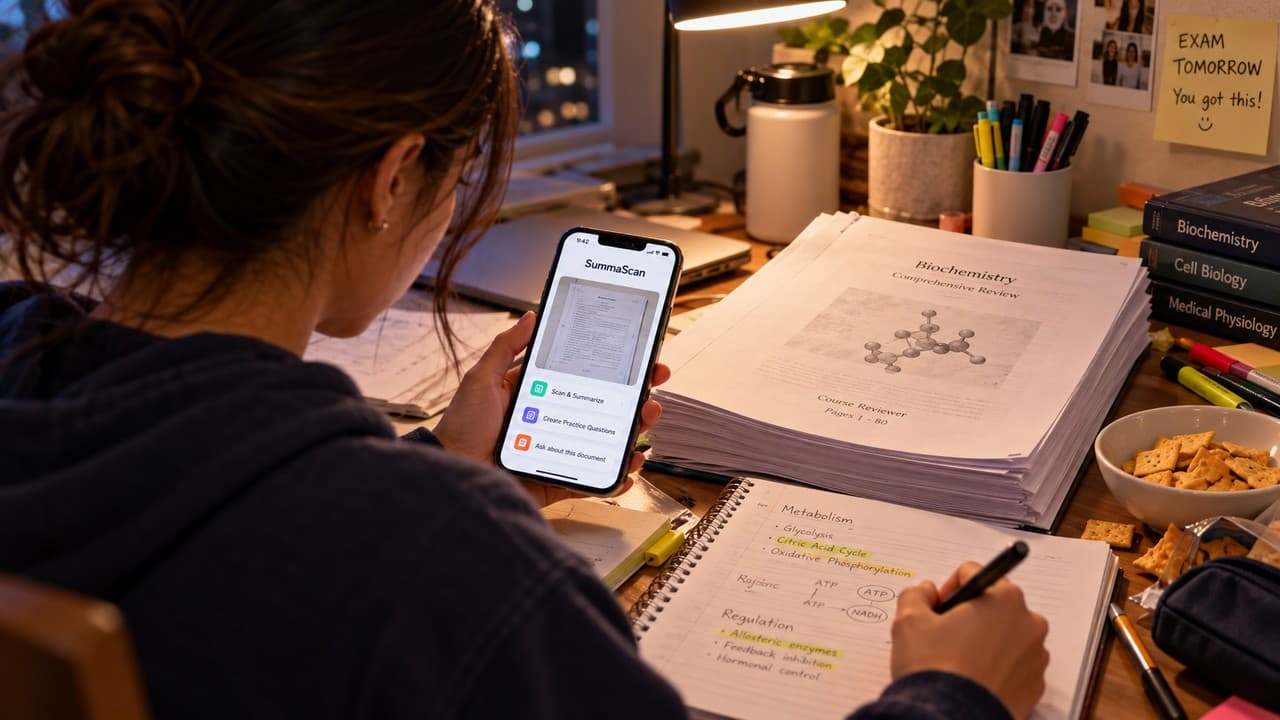
It's 11:48 PM. Someone in the group chat sends a file called "FINAL_reviewer_v3_REAL.pdf." It's 80 pages long. Twelve of those pages are photos of a photocopy of a photocopy, so the text looks like it's slowly disappearing.
The exam is at 8 AM. You have a highlighter, a pack of crackers, and a growing suspicion that version 2 had something version 3 left out.
If you're in college or in review season, you know this feeling. Long PDFs, handouts from three different professors, whiteboard photos taken at an angle from the back row. Reading isn't the problem. The problem is that the material arrives as a mess and you have to clean it up before you can even start.
Why studying from PDFs feels harder than it should
The study guides people search for all say about the same thing. Rereading feels productive but doesn't stick. What works is pulling out the main ideas, turning them into questions, and answering from memory.
That's good advice. It assumes, though, that you can actually copy and search the text. A lot of what you get in school is a scan. You try to highlight a definition and nothing happens. You search for "mitosis" and the PDF says it found nothing, on a page that has "mitosis" written across the top in big letters.
That's because a scanned page is a picture. To your pdf reader, it looks the same as a photo of your lunch.
How do I turn a photo into a PDF on iPhone?
This is one of the most common phone questions out there, and for students it usually means: "I have 14 photos of handouts and the teacher wants one file."
In SummaScan, you sign in, then scan. Point your iPhone at each page and the app finds the edges, straightens the page, fixes the angle, and adds it to the same document. That's a multipage scan: one PDF in the right order, instead of 14 photos plus one accidental picture of your shoe.
You can also import a PDF you already have, like that 80-page reviewer.
How do I copy text from a scanned PDF?
You run OCR (optical character recognition). It reads the words in the image and turns them into actual text. SummaScan does this on your scans, so the reviewer becomes something you can search, copy, and quote.
One honest tip that every OCR guide repeats: check formulas, numbers, and names against the page. OCR is very good on clean printed text and less reliable on faint photocopies and handwriting. If your professor writes a 7 that looks like a 1, OCR is going to struggle just like you did.
How do I summarize a long PDF?
Summarize gives you an overview of the whole document. At 11:48 PM, that's mostly a map. It tells you what the 80 pages cover, which topics take up the most space, and where to start.
What a summary isn't is a replacement for studying. The research on AI summaries says the same thing your professor would. A summary is good for figuring out what to read and not good enough to cite on its own. Use it to decide where your hours go, then read those sections properly. SummaScan's site says the same thing: check AI output against the source.
How do I ask questions about a PDF?
This is where it starts to feel like having a study buddy who actually did the reading. With Ask, you type questions about the document you scanned and get answers based on that document:
- What are the main topics in chapter 3?
- How does the handout define osmosis?
- What are the steps in the process on pages 20 to 25?
- What examples does the reading give for this concept?
The answers come from your file, not from the internet. So if your professor uses a specific definition, you get their definition and not a random one from a website.
How to make notes from a PDF that you'll actually use
Here's a routine that matches what the study guides recommend:
- Scan or import the handout so everything is in one searchable PDF.
- Run Summarize to see the shape of the material.
- For each section, ask SummaScan the questions you think will be on the exam, then check the answers against the page.
- Write your notes in your own words. Writing is what makes it stick, not the app.
- Close the PDF and answer those questions from memory. The ones you miss are what you study next.
If you need to edit or rearrange the text, you can export to Word (scan to Word, basically), and you can also export to PDF, images, or text. Sharing a scan with your group takes a tap, which makes you the hero of the chat for at least one night.
What it costs (student budget edition)
There's a free way to try it. The App Store listing says Free includes up to 15 processed pages every 7 days, watermarked exports, and up to 3 Ask AI uses. That's enough to test it on one tough handout.
Pro Weekly is $3.99 a week. There's also a Student Pro weekly plan at $1.99 a week. It unlocks after you sign up and verify with a school email or admin verification. Pro covers unlimited scanning, full Summarize and Ask, no watermark, and Word export. It's an iPhone app.
The short version
You still have to study. No app can sit the exam for you, and honestly, you wouldn't want it to (you paid tuition for that brain). But the 80-page reviewer can be one clean, searchable file. The faded photocopy can become text you can copy. And "where did they define that?" can take one question instead of twenty minutes of scrolling.
If that would help this review season, SummaScan: PDF Scanner & AI is on the App Store: https://apps.apple.com/us/app/summascan-pdf-scanner-ai/id6789966311. More at https://summascan.app.